You have arranged the company name around a circle, found a readable font, and adjusted the border. Then someone asks you to wait: the office address might change, or the wording needs one more check. You want to keep the design and come back tomorrow.
Our latest update makes that easier. My Library is now open to free accounts, with room for up to 50 stamp designs. Save your work, sign in again later, and reopen the design to keep editing. You do not need a paid plan to use this free stamp design library.
We have also fixed several interruptions around signing in, improved Arabic lettering on curved layouts, and reduced unnecessary loading when you browse the site. These improvements are available without an extra charge. Designing and previewing remain free; downloading finished stamp files without a watermark remains the paid step.
The changes released on October 24, 2026 focus on keeping your work moving:
| If you want to… | What has changed |
|---|---|
| Keep a design before deciding to export it | A free account can save up to 50 designs in My Library. |
| Find the free saving option | Save to My Library now appears near the top of the Download window, with a FREE badge. |
| Continue after signing in | We fixed return paths, cancelled Google sign-ins, and loading states that could interrupt the next action. |
| Design with Arabic curved text | We improved connected lettering and reading order in circular and oval text. |
| Browse guides without loading download tools | Components used to prepare exports now load when needed. |
There is nothing to install or activate to receive these changes. Open the website as usual. Sign in when you want to save work to your account.
A picture of a stamp is useful when the artwork is finished. It is less useful when a phone number changes or you want to move one line of text. A screenshot cannot give you the original text controls back.
My Library keeps the design so you can reopen it in the editor. Its text, shapes, and layout remain available for editing. You can review the spacing, change the wording, or adjust a color before choosing a finished export.
For example, imagine preparing a company stamp while a colleague checks the address. You could start from our , enter the details you already know, and save the draft. When the address is confirmed, reopen the saved design and make the correction.
The same approach works for a return-address stamp, an office RECEIVED mark, or a small logo layout. You can keep useful designs in one account instead of trying to remember the font and settings you chose last time.
Free accounts have space for up to 50 saved designs. Their library previews carry a watermark. That does not stop you from opening the design and editing it; it distinguishes the working preview from the clean files available through export.
The saving option is inside the Download window. Opening that window does not require you to purchase anything.
- Make your design. Open the stamp editor, choose a layout, and change the text, shape, color, and spacing as needed.
- Choose Download. This opens the window containing the export choices and the library controls.
- Select Save to My Library. Look for the FREE badge beside the button near the top of the window.
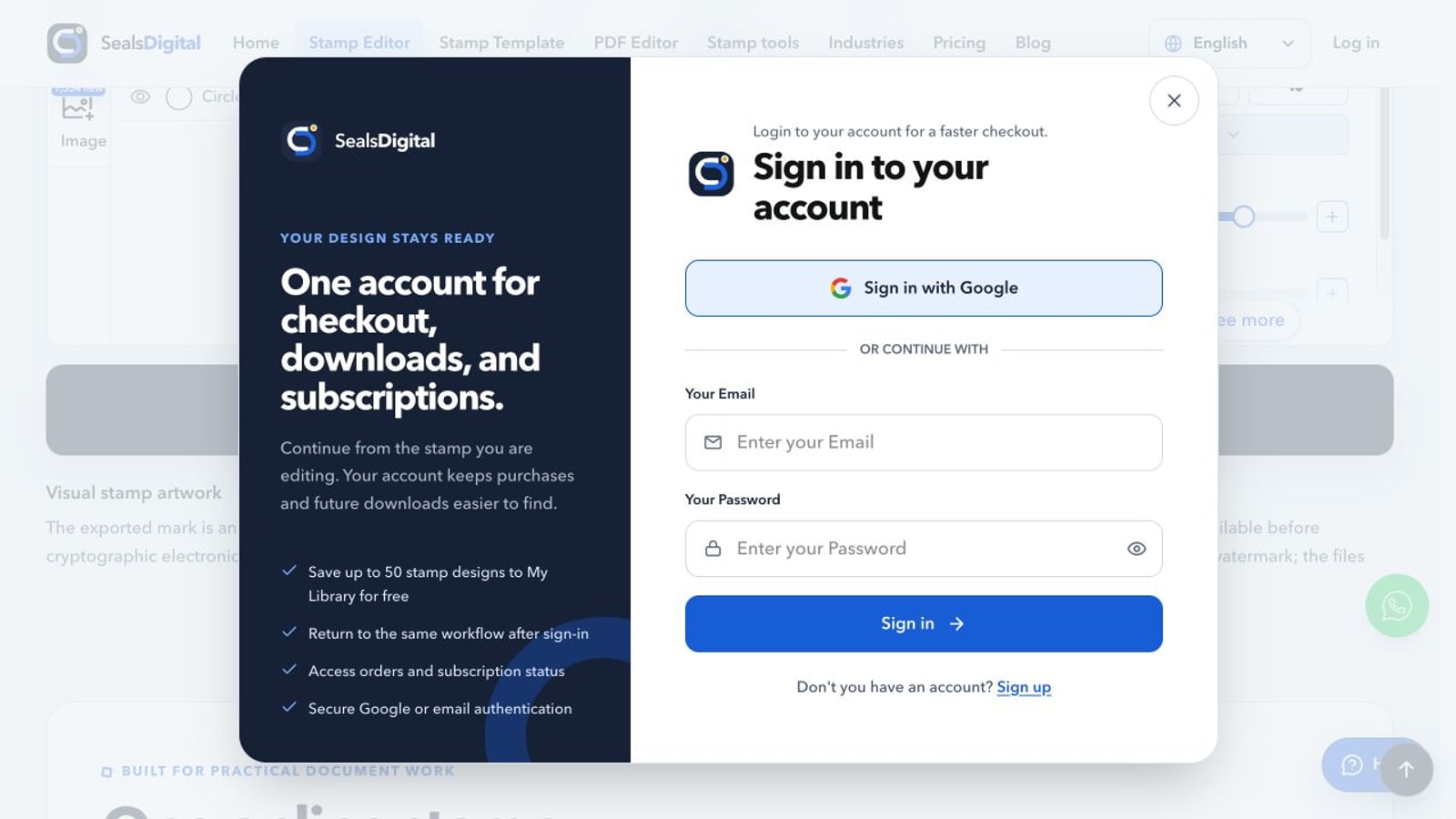
- Sign in if prompted. Use your existing account, or create a free account through the sign-up option. You can use Google or email sign-in.
- Wait for the saved confirmation. Then open My Library to check that the design is there before leaving the page.
The screenshot shows the separate actions clearly: saving a design to your account is free, while the buttons below offer finished file exports. You can save now and decide about an export later.
Saving is an action you choose. Do not treat an open tab as a saved copy. If you change the design again, use Save to My Library again and check the confirmation before closing the editor.
You can open My Library from the account menu after signing in. It is also available beside the save button in the Download window. Choose a saved design and open it in the editor to continue working.
Because the library belongs to your account, you can sign in to the same account on another device to find your saved designs. This is useful when you start a layout on a laptop and want to review it elsewhere. A design must have been saved successfully before it can appear there.
The library includes search, naming, and pinning controls to help you find work. These controls become more useful as you add designs. Names such as “Main office address” or “Blue RECEIVED stamp” are easier to recognize than a list of nearly identical previews.
You can remove designs you no longer need to make room within the free limit. Review the item before deleting it, especially if several versions look similar. Saving several alternatives can be helpful during review, but keep the version you intend to use easy to identify.
There is a useful distinction here: your editable design is the starting point for future changes, while a downloaded file is a finished output. Keep the saved design when you expect the wording to change later.
An account is useful only if signing in does not get in the way. This release addresses several specific points where that could happen.
Returning to your page. We fixed the return from Google sign-in so it can take you back to the page where you started. You can continue the task that prompted you to sign in.
Cancelling Google sign-in. If you cancel, the website now handles that return with a message so you can try again or choose another method. We also fixed loading indicators that could remain active when you used the browser's Back button after visiting Google.
Finding an existing email account. Email sign-in now handles differences in capital letters and spaces around the address more consistently. A phone keyboard capitalizing the first letter should not make your existing account harder to find.
Resuming the next action. The editor can remember that you were trying to save a design or continue a download before signing in. It can then resume that action once the account session is available.
If you choose to buy an export, there is also a convenience fix: the editor can remember the checkout email when you return from the payment page, where browser storage is available. These are fixes to the workflow; they do not require a new paid upgrade.
Arabic letters need to connect correctly, and the reading order matters. Placing that text around a circle or oval adds another challenge: the letters still need to read as words while following a curve.
We improved the handling of Arabic curved text in this update, including connected letter forms and right-to-left ordering. This helps when you place a company or organization name around a round seal or use an oval layout for longer wording.
You can try the changes in the free editor and preview the result before deciding to export. Check the exact wording in the font you plan to use, particularly when Arabic appears alongside Latin letters or numbers.
If someone else will use the stamp, ask a reader of the language to review the final wording. The editor improvements help with rendering; a careful spelling and readability check is still part of preparing the design. Keep that reviewed version in My Library so you can return to the same layout later.
Reading a stamp guide does not require the tools that build a Word or PDF export. Previously, some of those export components loaded across the website. They now load when the editor needs them, reducing the extra files requested during ordinary browsing.
There is no setting to change. You can browse templates and articles as usual, and the editor loads the required export tools when you move toward downloading. How quickly a page responds still depends on your connection and device.
We also addressed a problem with tabs left open during a website update. Those tabs could try to open a page using files from the previous version and show an error. For the affected navigation errors, the website now refreshes into the current version.
Our latest maintenance work also reduces memory pressure during the build and release process. That supports publishing future updates. For everyday use, the practical advice stays simple: save work you want to keep, even if you plan to leave the browser open.
The new free library gives you more room to work before making a purchase decision. You can design a stamp, preview it, save it to your free account, and return to edit it later.
The existing PDF stamping tool also remains free to use with stamp artwork you already have. Saving a stamp design does not automatically create a clean image for placing on a PDF; those are separate steps.
Finished stamp exports without the preview watermark remain paid, under the existing export options. The new library access does not change that boundary. Our explains the difference between working on a design and obtaining the final file.
This means you can postpone the export decision until the wording and layout are ready. You do not need a subscription simply to keep a draft available for another editing session.
Do I need to buy anything to save a stamp design?
No. Sign in with a free account and use Save to My Library. Free accounts can keep up to 50 designs. Payment is needed when you choose a clean finished export, rather than when you save the editable design.
Can I change the text in a saved stamp later?
Yes. Open the saved design from My Library in the editor, make your changes, and save the revised work. Check the saved confirmation before leaving. The library keeps an editable design, so you do not have to rebuild it from a screenshot.
Can I find my saved stamps on another computer?
Yes. Sign in to the same account and open My Library. Only successfully saved designs will appear. An unfinished design left in another browser tab should not be treated as a saved library item.
Why does my free library preview have a watermark?
The preview is a working view of your design. Free saving lets you keep and edit that design, while clean finished files are provided through the paid export options. A watermark on the preview does not mean the design is locked against editing.
Are the sign-in and Arabic text improvements paid extras?
No. They are part of the website update. You can use the improved editor preview and sign-in workflow without buying an upgrade. The usual distinction between free design work and paid finished exports still applies.
Start with a stamp you expect to revise: an address layout, a company seal, or a recurring office mark. Make the first version, choose Download, and use Save to My Library. Check that it appears in your account, then reopen it once so you know where to continue next time.
For help with the design itself, our cover practical layout and file questions. Keep your draft in My Library while you check the details, then export when it is ready.
