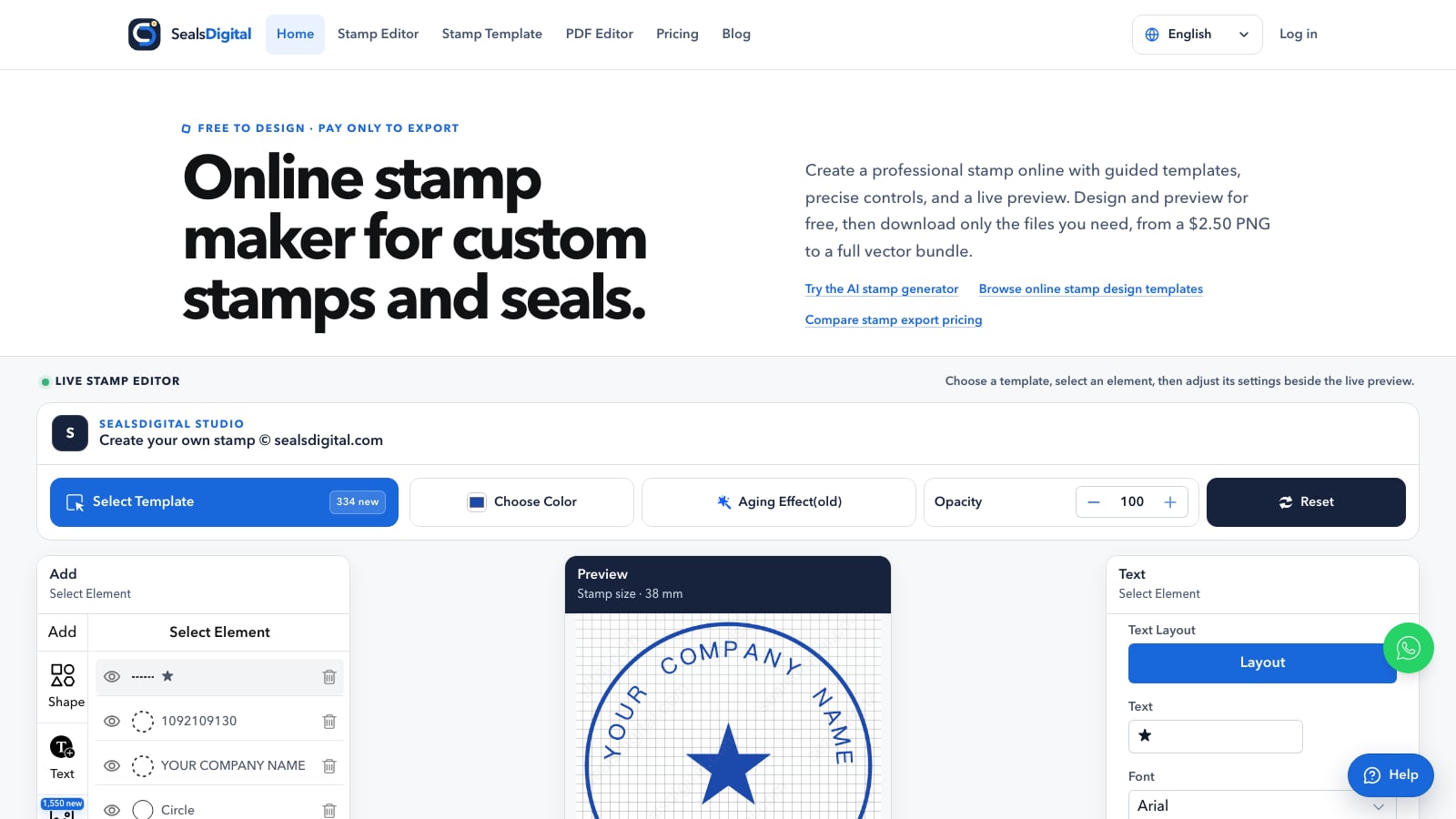
If you opened SealsDigital a few months ago to make a received stamp, you probably went straight to the editor, picked a template, changed a few words, and downloaded a PNG. That still works exactly the same way. What changed is everything around the editor: the pages that explain which stamp to make, how big it should be, which file to download, and what to do with it afterwards.
This update is a content and navigation overhaul rather than a new editor. We rewrote the main pages, gave every template category its own practical guide, reorganized the blog into ten clear topics, removed articles that repeated each other, corrected claims that did not match the product, and refreshed the homepage, editor, PDF, and contact pages in fifteen languages.
Below is a walkthrough of what is different, where to find it, and what has deliberately stayed the same.
Most people arrive with a concrete job: a company seal for a contract, a PAID mark for invoices, a return-address stamp for parcels, or artwork that a stamp shop can turn into a self-inking stamp. The editor could already handle all of these, but the pages around it did not always answer the questions people had before and after designing.
Some pages were short and generic. Others described features in vague terms, and a few described features that the editor does not offer. Several blog articles covered nearly the same topic with nearly the same wording, which made it harder to find the one useful guide.
We set three rules for the update:
- Every page should help with a real stamp task, in plain language.
- Every claim about SealsDigital should match what the editor and checkout actually do today.
- Every link should lead to a page that continues the same task, in the same language.
The homepage still opens with the live editor, so you can start designing immediately. Below it, the page now walks through the decisions that usually come next.
Stamp types you can make. Short descriptions of the most common layouts: company seals, rubber stamp artwork, round and rectangular stamps, date and received stamps, address stamps, notary layouts, logo stamps, and status marks such as RECEIVED or APPROVED. Each one links to its template category.
How to make a stamp online in five steps. Pick the closest template, replace the text, adjust type and spacing, set the color and finish, then preview at real size and export.
Design rules that keep a stamp readable. Practical guidance on designing at the final size, keeping curved text short, choosing ink color with copies in mind, and giving borders enough weight to survive scaling.
Export formats in one table. What PNG, JPG, SVG, EPS, PDF, and DOCX are each best for, with the current prices next to them.
If you only read one new section, make it the design rules. Most of the problems people bring to support, such as faint copies, crowded text rings, or blurry enlargements, are decided before the download button is ever pressed.
The dedicated editor page gives the stamp maker a full-width workspace and now spells out what the controls do:
- Shape and size. Circle, oval, rectangle, or triangle outlines, with standard sizes or a custom diameter, width, and height.
- Curved and straight text. Each text line has its own font, size, color, letter spacing, and position.
- Borders and shapes. Single, double, triple, dashed, dotted, or vintage borders, plus stars, lines, and polygons.
- Logos and images. Upload an SVG or PNG logo; it scales proportionally, and SVG artwork stays sharp at any export size.
- Color, opacity, and aging. Any ink color, lower opacity for a softer mark, and an adjustable aging effect for a worn, hand-stamped look.
- Templates and saved designs. Load any template as editable elements. Subscribers can save designs to My Library and reopen them later.
The page also answers the question we hear most often: is the stamp maker free? Designing and previewing is free, and the preview carries a watermark. You pay only when you download clean files.
Prices did not change in this update. What changed is that every page now states them consistently. Some older pages still quoted figures and bundles that no longer applied, and those have been corrected.
The current options are:
| Option | Price | What you get |
|---|---|---|
| PNG | $2.50 | Transparent PNG at 1x, 3x, or 10x |
| PNG + SVG + EPS | $2.90 | PNG plus vector files for printing and stamp production |
| All six formats | $3.50 | PNG, JPG, SVG, EPS, PDF, and DOCX |
| Monthly | $15.90 per month | Unlimited stamp creation and downloads |
| Annual | $119 per year | Unlimited access, billed once a year |
| Lifetime | $299 once | Unlimited access with no renewal |
A single export does not require an account. The PDF tool remains free either way.
The template library still holds the same editable templates, grouped into 25 categories such as company seals, rubber stamps, date stamps, address stamps, notary stamps, bank stamps, and logo stamps. Each category page now includes a practical guide below the template grid.
A typical guide covers:
- what the stamp is used for and what it usually contains;
- common shapes and sizes, and why they suit the wording;
- how to adapt the template in the editor;
- which export to choose for documents, printing, or a stamp manufacturer;
- common mistakes, followed by a short FAQ.
For example, the page now explains how the company name, registration details, and center emblem are usually arranged, and reminds you to check local requirements before relying on a seal for formal documents.
Category pages also point to related categories that people often need next, such as a date stamp alongside a received stamp. Where a category has several pages of templates, the guide appears once on the first page instead of being repeated on every page, so later pages load faster and stay focused on the templates themselves.
The blog now works as a set of ten topic hubs:
- online stamp maker
- stamp maker
- stamp maker online
- stamp maker online free
- stamp generator
- stamp generator online
- stamp online
- online stamp design maker
- online rubber stamp creator
- seal maker
Each hub opens with an introduction that explains what its articles cover, a short list of recommended starting points, and answers to common questions. The hub, for instance, starts with typography, file formats, preflight checks, and the difference between a stamp image and a digital signature.
Inside the articles, links now lead somewhere useful: to the template or tool the article is about, to the hub it belongs to, and to one or two closely related guides.
While reorganizing the blog, we found fifteen articles that were largely the same text with different topic words. Keeping them would have made it harder to find the stronger guide on each subject.
Each of those articles now redirects permanently to the closest, more complete article. A bookmark to an older warehouse intake article, for instance, now opens the guide to received stamp standards for warehouses. You do not need to update anything; old links still lead to the right place.
We also fixed two older articles that could not be opened because their addresses matched a blog topic page. They now have their own addresses and expanded content.
Thirty-five older articles were expanded or rewritten. Many were only a few hundred words long, and some had drifted from the topic in their title. The rewritten versions cover typography for seals, file formats, stamp security, logo stamps, legal requirements for digital seals, beginner workflows, and more.
During the rewrite we removed content we could not stand behind:
- invented statistics, customer stories, and quotes;
- years in titles that no longer matched the content;
- claims that a stamp image provides security features or legal proof.
Where an article touches on law, notarization, healthcare, or finance, it now explains general principles and tells you to confirm the rules that apply to you with the relevant authority.
This is the least visible change, but probably the most important. We reviewed the homepage, tool pages, template guides, and blog articles for statements about SealsDigital itself and removed anything that did not match the product. That included mentions of anti-counterfeiting layers and serrated edges, outdated prices, incomplete format lists, and wording that implied a stamp image works like a certificate-based signature.
To be clear about that last point: a file exported from SealsDigital is visual stamp artwork. It shows who handled a document and keeps paperwork consistent, but it does not prove identity or detect later changes. When a document needs legal e-signing, use a signature service as well, and place the stamp for recognition.
The PDF page now includes a full guide to adding a stamp to a document:
- Design the stamp and export a transparent PNG. A 3x PNG keeps the edges sharp when you resize it.
- Upload the PDF in the free PDF workspace. Files are processed in your browser and cleared about an hour after use.
- Add the PNG as an image, drag it near the signature line or date field, and resize it to the size of a real stamp.
- Zoom to 100% to check that names, amounts, and dates are still readable, then download the stamped PDF.
The guide also covers common problems: the white box that appears when a JPG is used, stamps that disappear on dark pages, and why you should add a stamp before applying a certificate-based signature.
SealsDigital's homepage, editor, PDF, and contact pages are available in Arabic, Czech, Danish, German, Greek, French, Hungarian, Indonesian, Italian, Japanese, Korean, Polish, Portuguese, Russian, and Urdu. In this update each of those pages received new localized content: stamp types, everyday use cases, a five-step guide, design rules, an export table, and a longer FAQ.
The text was written for each market rather than translated word for word, using the terms people there actually search for. The Japanese pages, for example, describe the sizes commonly used for company square seals and representative round seals rather than repeating Western office-stamp sizes.
Links on localized pages now stay in the same language. If you are reading the German homepage, every link in the content leads to another German page.
A lot stayed exactly as it was:
- the editor itself, its templates, and how designs are exported;
- prices and payment options;
- accounts, subscriptions, and saved designs in My Library;
- the free PDF tool;
- the address of every tool page, and of every article apart from the merged ones and the two that previously could not be opened.
If you already have a stamp you like, nothing about it needs to change.
Did prices change with this update?
No. Single exports still cost $2.50 for PNG, $2.90 for PNG with SVG and EPS, and $3.50 for all six formats. Unlimited access is still $15.90 per month, $119 per year, or $299 for lifetime access.
Do I need a new account or to sign in again?
No. Existing accounts, subscriptions, and saved designs are unaffected. A single export still does not require an account.
An article I bookmarked now opens a different page. Why?
It was one of fifteen articles that repeated another guide almost word for word. Its address now redirects permanently to the most complete article on the same topic.
Are the templates the same as before?
Yes. The templates and categories are the same. What is new is the guide on each category page and the links to related categories and articles.
Can I still get vector files for a physical rubber stamp?
Yes. The PNG + SVG + EPS option and the six-format bundle both include vector artwork that print shops and stamp manufacturers can use. SealsDigital designs the artwork; the manufacturer makes the physical stamp.
The editor you know has not moved. What changed is the guidance around it, so you can decide which stamp to make, design it at the right size, export the right file, and place it correctly.
A good place to start is the , which walks through the checks worth doing before you download any stamp. If something on the new pages is unclear, or you spot a detail that does not match what you see in the editor, the contact page is the quickest way to tell us.
