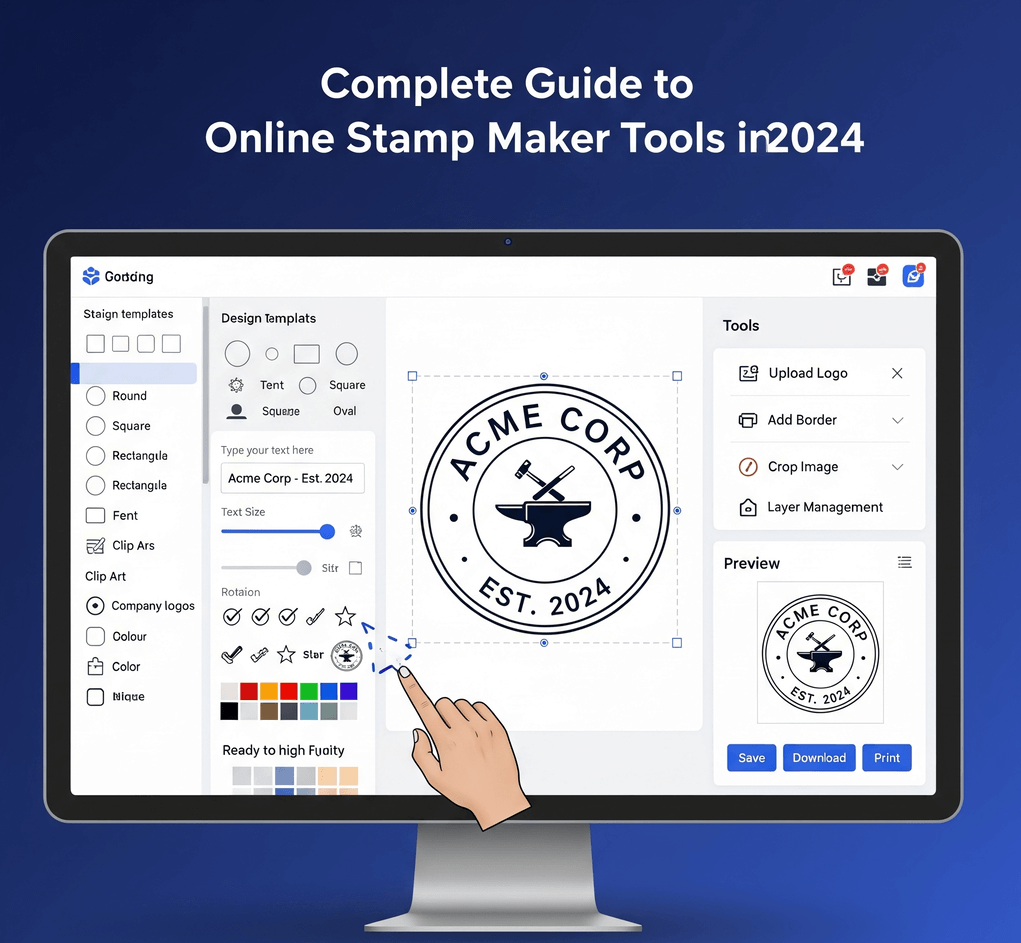
There are plenty of online stamp makers, and at first glance they look alike: a stamp preview, some text fields and a download button. The differences show up later, when curved text will not sit evenly, the downloaded file has a white box around it, the print shop rejects the format, or a "free" tool turns out to charge for every export at a usable size.
This checklist covers what to compare before you invest time in any tool: templates, text control, shapes and borders, export formats, transparency, preview, pricing and privacy. It ends with a short test drive you can run on any stamp maker in about ten minutes.
Good templates save more time than any other feature. Look for:
- Variety by use case. Business, date, address, received, approved, notary, logo and decorative stamps, not just one generic circle.
- Everything editable. Every text element, border and shape in a template should be changeable. Templates with locked parts are only useful if you happen to like the defaults.
- Sensible starting layouts. Text that already fits the shape with balanced spacing gives you a head start.
For reference, the groups hundreds of editable designs by use case, so you can begin from a layout that is already close to your purpose.
Text is the heart of most stamps, and it is where weaker tools fall short. Check whether you can:
- combine text along a curve with straight text in the same design,
- change the font, size, color and letter spacing of each element separately,
- position each text element freely,
- fit a long name without awkward squashing or overlapping letters.
Curved text deserves special attention. Type the longest name you will actually use and see whether the tool lets you adjust spacing and position so it sits evenly around the ring. A tool that handles a short demo name well may struggle with "Riverside Community Health Partners."
The outline sets the character of the stamp. A capable tool should offer at least circle, oval and rectangle shapes, in standard sizes as well as custom dimensions. Border options such as single, double, dashed and dotted lines cover most needs, and a vintage-style border helps with a hand-stamped look.
Extras such as stars, lines and polygons are useful for separating text zones and adding emphasis. Logo upload matters if you want your brand inside the stamp. Check that the tool accepts SVG and not only PNG, so the logo stays sharp at any size.
An aging or distressed effect is a nice option for a handmade feel. Make sure it is adjustable and can be switched off entirely, because heavy texture hurts legibility on working documents.
This is where tools differ most. Think about every place your stamp will end up:
| Need | Format to look for |
|---|---|
| Placing on PDFs, Word files, slides and email | Transparent PNG at high resolution |
| Print shops and rubber stamp makers | Vector files: SVG, EPS or PDF |
| Inserting directly into Word | DOCX |
| Quick sharing where transparency is not needed | JPG |
A tool that only exports a low-resolution JPG may be fine for a social media post, but it will cause trouble on documents and in print. SealsDigital, for example, exports PNG, JPG, SVG, EPS, PDF and DOCX, with PNG available at 1x, 3x or 10x.
A stamp placed on a document should let the page show through its empty areas. That requires a PNG or vector file with a transparent background. Many stamps that look "pasted on" have a white or off-white background baked into the file.
To test it, download a sample and place it on a colored background. If you see a rectangle around the stamp, the background is not transparent. Our guide to explains how to diagnose and fix the problem.
A preview that updates as you type saves a lot of trial exports. Check that it shows true proportions and colors, and that you can view the stamp at roughly the size it will appear on a document. Watermarks on previews are common and reasonable, since they protect the unpaid design. What matters is that you can judge the result clearly before you pay.
Read the pricing page before you design, not after. Common models include:
- Free with limits: low resolution, watermarks or a single format.
- Pay per export: you pay only when you download a finished design.
- Subscriptions: monthly or yearly plans for regular use.
- Lifetime access: a one-time payment for ongoing use.
Useful questions: Is designing free? Which formats are included at each price? Do you need an account to buy one file? Can you reopen and edit a saved design later?
As an example, works like this: designing and previewing are free, single exports range from $2.50 for a PNG to $3.50 for all six formats, and unlimited plans cost $15.90 per month, $119 per year or $299 lifetime. A single export needs no account, and subscribers can save designs to My Library and reopen them.
Stamp designs often contain company names, addresses and registration numbers, and stamping tools may handle whole documents. Look for clear answers to these questions:
- Do you need to create an account, and what information is collected?
- If you upload a PDF to stamp it, where is it processed and how long is it kept?
- Who can see designs you save?
For example, the SealsDigital PDF tool processes files in your browser and clears them about an hour after use. If you work with sensitive documents, check your organization's policy on online tools before uploading anything.
Run this on any stamp maker you are considering:
- Pick a template close to your need and replace the sample text with your real wording, including the longest name you will use.
- Change the shape, border and color to see how flexible the editor is.
- Upload your logo as an SVG.
- Preview the stamp at the size you will actually use.
- Check which formats and resolutions are offered and what each costs.
- Export a file, place it on a PDF and on a colored background, and zoom in on the edges.
If a tool passes all six steps, it is likely to hold up for everyday use.
- Claims that a stamp image is a "legally binding" or "secure" digital seal. A stamp image is artwork; it does not prove identity or detect tampering.
- No clear pricing until after you have finished designing.
- Exports only in low-resolution raster formats.
- Templates that copy official government or notary seals with no note about authorized use.
- No information about how uploaded documents are handled.
When you are ready to try these checks yourself, open the with your own wording. For more comparisons and how-tos, browse our .
Are free online stamp makers good enough?
For a quick image on a social post, often yes. For documents and printing, check the export resolution, transparency and formats before you rely on a free tool. A tool that lets you design and preview for free and pay only for the final export is a reasonable middle ground.
Which export format matters most?
For most people, a transparent PNG at high resolution, because it works on PDFs, in Word and in email. If you may order a physical stamp, make sure vector formats such as SVG or EPS are available too.
Is a stamp from an online stamp maker legally valid?
A stamp image is visual artwork. It does not prove who applied it or detect changes to a document, so it is not a substitute for a digital signature or certificate-based electronic seal. For contracts and regulated documents, check the rules that apply to you.
Do I need an account to use an online stamp maker?
It depends on the tool. On SealsDigital you can design, preview and buy a single export without an account. An account and subscription are useful if you want to save designs and export them repeatedly.
